Archive for category WAMP
Setting up Virtual Hosts on WampServer
Posted by Rui Miguel Feio in Tech - Web Development, WAMP on January 30, 2011
If you’re a web developer you know how fantastic WampServer is in allowing you to have Apache, MySQL and PHP server locally under Windows. This allows you to test all your websites locally before you upload them into the “real” server.
Now, the problem is that by default if you have two sites (site1 and site2) locally, it’s always a pain having to browse them by using “http://localhost/site1/index.php” as a URL.
The best way is always to make the URL shorter and for this WampServer allows you to create Virtual Hosts. The general idea of Virtual Hosts is
that you can use something like “http://site1″ or “http://site2″ instead of having to use the complete URL.
Here’s how you do it:
1. Edit the “hosts” file on your windows system (usually located at c:\WINDOWS\system32\drivers\etc\)
2. Add the following to the end of the hosts file:
127.0.0.1 site1
127.0.0.1 site2
This tells your computer that any url with a value of ‘site1′ or ‘site2′ should be routed to 127.0.0.1 or more commonly refered to as localhost.
3. Save your changes.
4. Now go to “C:\wamp\bin\apache\Apache2.2.17\conf” and edit file “httpd.conf”
5. Search for “httpd-vhosts.conf”
6. Remove the “#” from the beginning of the line “Include conf/extra/httpd-vhosts.conf”
7. Now go to “C:\wamp\bin\apache\Apache2.2.17\conf\extra” and edit file “httpd-vhosts.conf”
8. Add the following lines to the end of this file:
9. Click on the WampServer icon
10. Select “Restart All Services”
And that’s it! From now on you only have to use “http://site1″ and “http://site2″ as URLs for your 2 local websites.
Notes:
- These instructions may not work for older versions of WampServer.
- On Windows 7 you will need to edit the “hosts” file running Notepad as Administrator.
Change the www root directory on WampServer
Posted by Rui Miguel Feio in Tech - Web Development, WAMP on January 30, 2011
If you do not wish to use “c:/wamp/www/” as your DocumentRoot you simply have to perform the following steps:
1. Click on the WampServer icon
2. Select Apache > httpd.conf
3. Search for “DocumentRoot”
4. Change the path to whatever you wish to be the new Document root directory (make sure to use a forward slash instead of a back slash)
5. Search once again for “DocumentRoot”
6. You will find something like: “”
7. Once again change the path to whatever you wish to be the new Document root directory (make sure to use a forward slash instead of a back slash)
8. Save your changes
9. Click on the WampServer icon
10. Select option “Restart All Services”
PHP parameter session.gc_maxlifetime is lower that cookie validity configured in phpMyAdmin
Posted by Rui Miguel Feio in PhpMyAdmin, WAMP on December 5, 2009
If you have installed a new MySQL version you may be getting the following warning message:
Your PHP parameter session.gc_maxlifetime is lower that cookie validity configured in phpMyAdmin, because of this, your login will expire sooner than configured in phpMyAdmin.
To solve this issue we first need to check what the session.gc_maxlifetime value is in php.ini and what the $cfg['LoginCookieValidity'] is in config.inc.php.
Example:
1. php.ini
session.gc_maxlifetime = 1440
2. config.inc.php
$cfg['LoginCookieValidity'] = 1800;
Now, we only need to make these two values the same. For the sake of this example, we will change the value of $cfg['LoginCookieValidity'] to 1440.
After saving the changes we need to restart the services to make them effective.
Notes:
1.The php.ini file can be found on the php folder.
2. The config.inc.php file can be found on the phpmyadmin folder.
If you’re interested in learning more about PhpMyAdmin then check out the book “Mastering PhpMydmin for Effective MySQL Management“.
phpMyAdmin root with no password message
Posted by Rui Miguel Feio in PhpMyAdmin, WAMP on September 17, 2009
After installing WAMP Server it is common when you first access phpMyAdmin to get the following message:
“Your configuration file contains settings (root with no password) that correspond to the default MySQL privileged account. Your MySQL server is running with this default, is open to intrusion, and you really should fix this security hole by setting a password for user ‘.root’.”
To correct this security issue you need to do the following:
- Go to phpMyAdmin
- Select the Privileges tab
- Locate the user “root” that has localhost for a host
- Edit the root user privileges by clicking on the corresponding Edit Privileges button
- On the Change Password section insert the desired password and press Go
- You should now have at the top of the screen the message: “The password for ‘root’@'localhost’ was changed successfully.“
- Now you need to edit file config.inc.php normally located at C:\wamp\apps\phpmyadmin3.2.0.1 (note that the version indication may vary)
- Locate $cfg['Servers'][$i]['auth_type'] = ‘config’; and change from config to cookie so that you get a login window every time you access phpMyAdmin
- Locate $cfg['blowfish_secret'] = ‘ ‘; line. If you don’t have one add it to your config.inc.php file
- Add a secret passphrase to $cfg['blowfish_secret'] = ‘ ‘; for example: $cfg['blowfish_secret'] = ‘secret_pass’;
- Save your changes
- Go to the WAMPServer and select Restart All Services
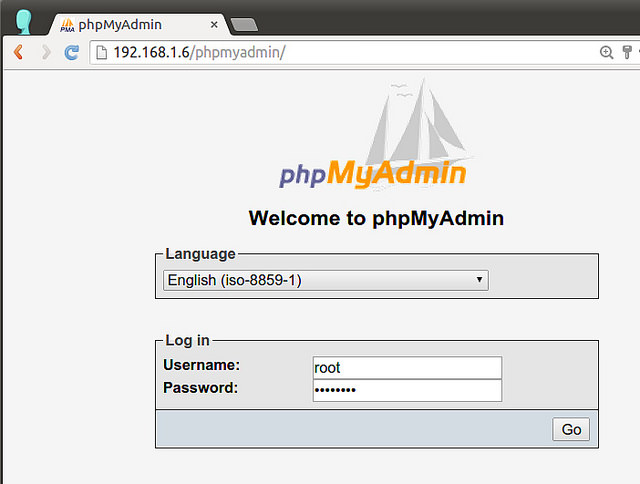
- Once all the services have been restarted go to phpMyAdmin and enter the username root and your password to access phpMyAmdin
Notes:
- The blowfish_secret passphrase should not be the same as the root password.
- If you don’t add a $cfg['blowfish_secret'] line to the config.inc.php file, when you access phpMyAdmin you’ll get the message: “The configuration file now needs a secret passphrase (blowfish_secret).“
If you’re interested in learning more about PhpMyAdmin then check out the book “Mastering PhpMydmin for Effective MySQL Management“.
Follow Me!